Raspberry Pi

This is off my usual subject matter but I’m so excited by this amazing little computer that I had to write something about it.

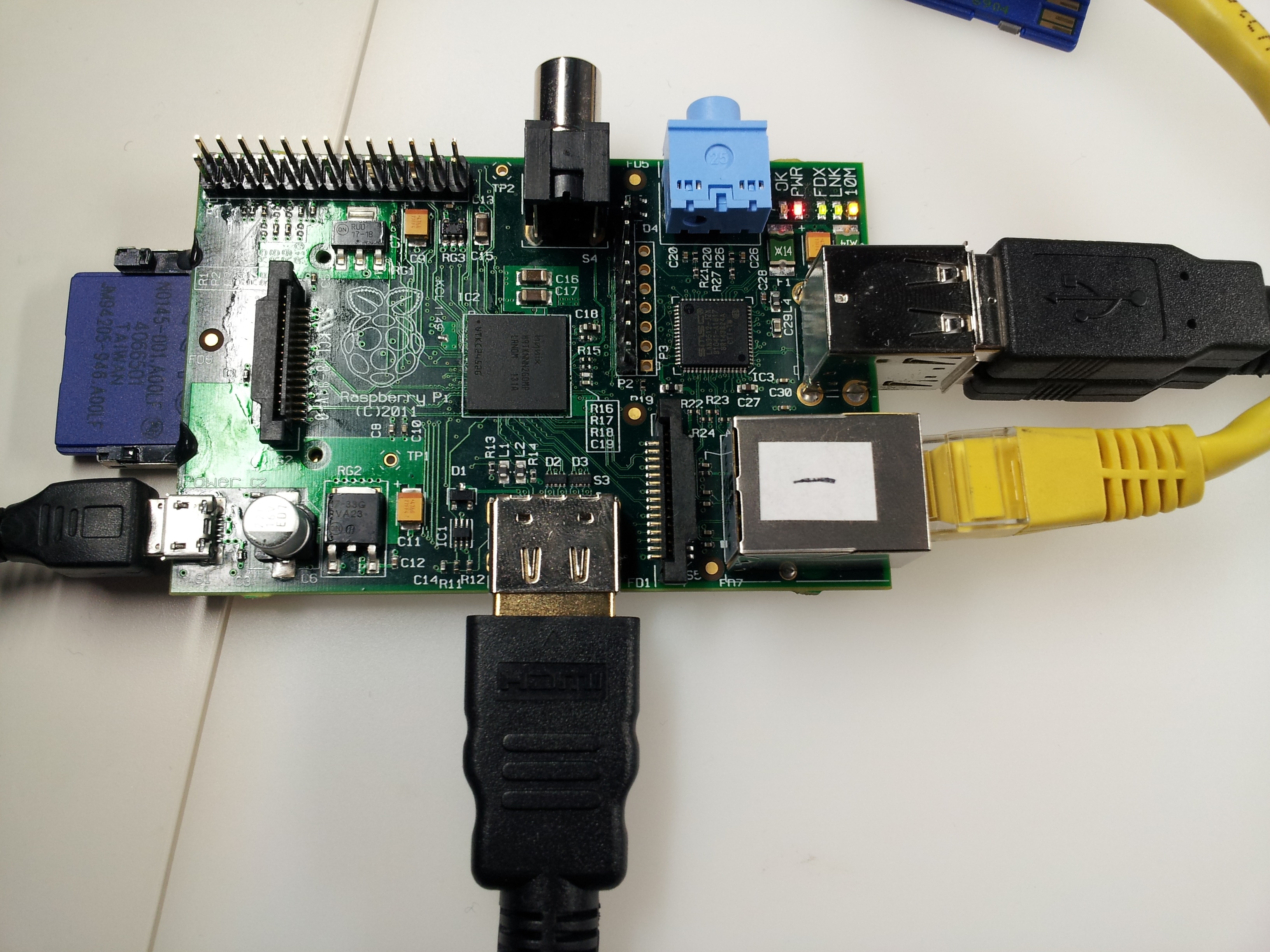
One of the project’s developers, Alan Mycroft, very kindly came over from Cambridge with a real live Raspberry Pi to tell us all about it and what it’s capable of doing. Quite frankly it’s an astonishing development and I can’t wait to start tinkering with one myself.

For a start the whole thing fits on a credit-card-sized footprint. The tiny central processor is dwarfed by the components around it, belying  its impressive capabilities. It’s a Broadcom ‘System on a Chip’ processor that neatly sandwiches processor, video GPU and 256MB of RAM in one tiny central bundle. It’s actually a Broadcom BCM2835, comprising an ARM1176JZFS with floating point capability, running at 700MHz. It was apparently originally intended for the set-top box market.

This makes it very approximately equivalent to a 300MHz Pentium 2 – not very exciting by modern standards – but the graphics capability part of that sandwich is bang up to date. It’s a separate Videocore 4 GPU, capable of Bluray quality playback, using H.264 at 40MBits/s.
In other words, Broadcom’s target market of set-top-box manufacturers, with their demand for 1080p  high definition video, have led to this chip having the ability to cope with that without breaking into a sweat.

We saw it running a film at this quality – seamlessly – and also saw it rendering Rightmark’s Samurai warrior OpenGL ES benchmark, on the fly, at breathtaking quality and very impressive speed. A brand new desktop PC wouldn’t disgrace itself putting in a performance like that.

Video is outputted via HDMI – which can of course also transmit sound – but since this is targeted at the education market, where HD-ready kit isn’t quite so readily available, there is still an old-school option of composite video and audio out. There’s a 2p coin there too to help get a feel for just how small this thing really is.

The board runs off a 5v input – it uses a mini USB adapter – which means that many mobile phone chargers will power it but there are plenty of other options to get such a modest voltage. I gather it will still run even on lower voltages – such as the 4.5v output from three AA batteries. The 1w demand of the CPU is typical of many electronic devices on standby…

I’m thinking I would like to experiment with powering one from a solar panel or putting the Raspberry’s board inside the case of a wind-up clockwork radio. The boring option is of course to use a USB output from a monitor.

The truly wonderful thing about this amazing computer is that it’s so cheap that you could realistically deploy them in places where you’d not normally want to risk an expensive device. And because it boots from an SD card if you ‘brick’ the unit you can simply swap the SD card and re-insert the power cable to restore it. Incidentally the SD card being used to demo the unit was a fairly modest mid-range class 4 card  – which gave ample performance for a demo of it running Linux – but it’s clear that using a class 10 card would improve paging performance and the screen redrawing (which is currently bitmapped rather than handed over to the GPU). This also suggests that there’s potential for a significant hike in performance on a device that’s already impressive in bang per buck.


Update: the video from the OUCS session on the Pi can be found here

Posted in Uncategorized | 7 Comments

Migration reporting

One of the jobs that’s fallen to me is to report on the successes (or otherwise) of our mailbox migrations. The output needs to get to people who may not have access to any of the Exchange management tools. Now my PowerShell isn’t great but with a bit of effort I trawled through my notes and beat some of my old script notes into shape as the scrap of Powershell you see below.

What it does is load up the Exchange snap-in first (so that Exchange commands will be understood), creates a text file listing the successfully migrated mailboxes and then emails it out to the recipient of your choice. In our case I added further recipients on separate lines so that it could also log a ticket in our support system. This allowed our helpdesk to get a record of the migrations without needing access to a server.

Add-PSSnapin Microsoft.Exchange.Management.Powershell.E2010 -erroraction silentlyContinue
$file = “C:\migsuccess.txt”
$mailboxdata = (Get-MoveRequest | Get-MoveRequestStatistics | where {$_.status -match “Completed”} |ft alias, TotalItemSize, TotalMailboxItemCount, PercentComplete, BytesTransferred, ItemsTransferred -auto)
$mailboxdata | out-file “$file”
Start-Sleep -s 5
$smtpServer = “<Hub Transport Server>
$att = new-object Net.Mail.Attachment($file)
$msg = new-object Net.Mail.MailMessage
$smtp = new-object Net.Mail.SmtpClient($smtpServer)
$msg.From = “<from@address.com>
$msg.To.Add(“<your email@address.com>“)
$msg.Subject = “Migration Report: Successes”
$msg.Body = “Dear Migration Watcher,”+”`r `n”+”Attached to this email is a daily report which lists all of the mailboxes which SUCCEEDED in their migration to Exchange 2010.”+”`n”+”These have been committed to the Exchange 2010 servers in full, without logging an error. The mailboxes’ content should therefore be unaltered, simply having been transferred in full to an Exchange 2010 server.”+”`r `n”+”Kind regards”+”`n”+”`r `n”+”OUCS Nexus Team’s friendly automessenger”
$msg.Attachments.Add($att)
$smtp.Send($msg)
$att.Dispose()

The actual command I used generated four reports rather than just listing the successful ones (substitute ‘Failed’, ‘Completed with error’ or ‘autosuspended’  for ‘completed’ on the third line). One of the downsides of reusing old bits of PowerShell, rather than starting from scratch each time, is that this bit has to supply codes (‘`r‘ and ‘`n‘) to generate the paragraph/new lines within the email. Nowadays I would probably make the body text of the e-mail a Powershell ‘here’ string so that the format matches what’s in the script. That makes it more readable /maintainable while also offering scope for the use of parameters (such as $($mbox.DisplayName) for personalising the ‘Dear User’ line). This was first written back in the days when I was still using Notepad as my editor…

Posted in Uncategorized | 2 Comments

Exchange 2010 SP2

Way back in mid-December I wrote about how Service Pack 2 had been released. As a major update, appearing just before the Christmas holidays, it was an option that seemed a little too risky to try and squeeze in alongside our phase of mass-migrations. Then, last week, it was announced that the first roll-up for this service pack has now been released containing a scarily long list of fixes and bugpatches. I guess waiting for a little while was no bad thing…

There was also a note from the Exchange Team on Friday that even this update has introduced a change which might have affected us.  SP2 RU1 package changes the user context cookie used in CAS-to-CAS proxying. What they describe as ‘An unfortunate side-effect’ is incompatibility between SP2 RU1 servers and other any other versions. It seems that earlier versions of Exchange do not understand the newer cookie used by the SP2 RU1 server. The effect? Proxying from SP2 RU1 to an earlier version of Exchange will fail with the error:

Invalid user context cookie found in proxy response

The size of our environment (and our two-hour maintenance window) make it difficult to undertake major updates except on a rolling basis over several weeks. The solution of ‘simply’ upgrading all servers to SP2 RU1 to avoid this problem might be a more involved task in a large environment than the article suggests.

Update Rollup 1 for Exchange Server 2010 SP2

Posted in Uncategorized | Comments Off on Exchange 2010 SP2

Reverted migration breaks Outlook’s rules

To test the throughput we could expect from mailbox moves, ten members of OUCS volunteered to became migration guinea pigs. A ‘suspend when ready to complete’ move had been run and, a week later, that move was completed.

This delay allowed me to capture valuable statistics for how fast data might be transferred but also the effect of delay on  committing the final changes for the mailbox move, since that’s the part which users will be aware that something is happening. Once I had the data the mailboxes were then moved back to Exchange 2007.

Within a short time it became apparent that there was a problem: Outlook rules were no longer processing messages automatically. The rules would still work but only if they were run manually – a real inconvenience when your inbox also receives alerts from SCOM and a support ticketing system…

The diagnostic process quickly ruled out the client as the source of this problem – all Outlook users from the batch of volunteers had the same issue – and a further bit of troubleshooting showed that the usual fixes for rule issues (such as Outlook’s ‘clean rules’ startup switches, or exporting/deleting/restoring them) didn’t help. In fact there only seem to be two fixes that seems to resolve this: move the mailbox back to Exchange 2010 or create a brand new mailbox for an afflicted user and restore their content into it.

Now I should emphasise that this is not an issue we expect to affect our users – there are very few conceivable situations in which we’d expect to revert a migration in this way – our intention is to migrate everyone from Exchange 2007 onto Exchange 2010. That direction of migration works without a hitch.

But to try and identify what’s going on with rules under this situation  (a mailbox that has been moved from Ex2007 to Ex2010 is then moved back to Ex2007 again) I drew a blank. A search online found lots of people had reported the issue, some had even logged support tickets with Microsoft, but none suggested a solution.

I tried a different tack and contacted the Exchange team direct. I was extremely gratified to receive a reply from a member of that team over the Christmas break:

We are aware of this as a problem and have some bugs opened where it is being investigated as far as what the best way to deal with this problem is. Sorry to be deliberately cryptic, but at this stage, I simply have no more information to share. But we are looking into it!

I’ll update this post as further information about this issue becomes available.

UPDATE:

Automatic processing of your Outlook rules can be reinstated:

  • Log into Outlook Web Access
  • Disable Junk email filtering
  • Re-enable junk email filtering
  • That’s it!

The thread detailing this fix, and how we found it, is here:

http://social.technet.microsoft.com/Forums/en/exchangesvradmin/thread/3cf2360f-0a4c-4c7e-87c9-6726e3dc34fd

FURTHER UPDATE:
Microsoft have issued the following response on this:

We are currently planning to release a permanent fix for this in the next rollup for Exchange 2007 (SP3 RU7). If you need the fix in the mean time, please call Exchange support and get an interim update.

Posted in Uncategorized | Comments Off on Reverted migration breaks Outlook’s rules

The mystery of the Mailbox Replication Service

One of our key aims during this upgrade has been to minimise the period of coexistence between Exchange 2007 and Exchange 2010. This is because our testing phase had revealed a number of potential areas in which we could expect user dissatisfaction, at least up until we were able to migrate their mailboxes to the new servers. These potential issues included:

  • OWA Double-authentication
    In this scenario (non IE users) are asked to logon to Exchange 2010 OWA, are redirected to Exchange 2007 to find their mailbox, at which point they’re then asked to authenticate again. This is due to ISA presenting a cookie that only IE is happy to accept.
  • Mac Mail reconfiguration
    It seems that Mac Mail only uses Autodiscover during its initial set-up, so wouldn’t be redirected to the ‘legacy’ namespace during coexistence. Mac Mail would need to be reconfigured with a new URL at the start of coexistence and then back to the original one again once the mailbox had been migrated. This configuration data is held in a PLIST file and although it’s possible to be edited, it’s stored in a binary format that also contains user-specific values (so we couldn’t easily provide a downloadable version to do the reconfiguration for our users)
  • Other EWS clients
    Our UNIX population would potentially suffer the same need to reconfigure (twice) as Mac Mail users
  • Outlook 2003
    We initially expected problems here too (due to the product not being aware of Autodiscover).

Clearly the sensible approach is to minimise the amount of time spent in coexistence and avoid these issues completely. Our Project Board recently confirmed that this was the tack we should be aiming to follow. But other decisions we’d made along the way, such as sticking to the same namespace, while great for avoiding users having to reconfigure, are not so good if you want a ‘big bang’ migration. A lengthy period of coexistence seemed inevitable.

Figures showed that we could consistently achieve throughput figures in the region of 20GB/hr when migrating between the two systems. But with 25TB to move that would still leave us with those coexistence worries for far too long. Something had to give: we either needed a rethink to avoid (or at least mitigate) the coexistence problems or we’d have to find a way to make the migration happen faster.

A bit of digging revealed that we might be able to improve things on the latter. Data transfer was being throttled back by the Mailbox Replication Service (MRS). This runs on the Client Access Servers and effectively takes the effort of moving data off the mailbox servers. That’s good news for two reasons: you get faster mailbox servers and move requests no longer lock out the console during the task, as it used to.

However transferring the moving task to the CASs means that user connections could be affected by back-end mailbox move tasks taking up too much of the system’s resources. To ensure that the CASs are still able to serve user connections during mailbox moves the default MRS settings have therefore been set to pretty conservative values.

This makes sense in a production environment: client responsiveness is usually more important than a mailbox move. But since our servers aren’t going to be handling user requests just yet we don’t need quite so much caution. I therefore did some editing…

The file which controls the Mailbox Replication Service (MRS) is called MSExchangeMailboxReplication.exe.config and (on a default installation) you’ll find it here:

C:\Program Files\Microsoft\Exchange Server\V14\Bin

Right at the end of this file is the section that we’re interested in:

MaxMoveHistoryLength = “2”
MaxActiveMovesPerSourceMDB = “5”
MaxActiveMovesPerTargetMDB = “5”
MaxActiveMovesPerSourceServer = “50”
MaxActiveMovesPerTargetServer = “5”
MaxTotalMovesPerMRS = “100”

The values which had potential to affect users on the current servers were left alone (that’s MaxActiveMovesPerSourceMDB and MaxActiveMovesPerSourceServer). These values can range from zero to 100 and 1,000 respectively.

The MaxActiveMovesPerTargetMDB value was the setting I increased, first to 25, to gauge the effect. This setting is also on a zero to one hundred scale. I then tweaked MaxActiveMovesPerTargetServer to 25. This value goes up to 1,000 so represented a pretty cautious increase, just to see what kind of load it generated. Finally the MaxTotalMovesPerMRS value can be upped too. Depending on where you read it, this value tops out at either 1000 or 1024. Since the config file itself lists its ceiling as 1024, that’s the number I’ve assumed to be right. On that basis though, Microsoft’s technet seems to be quoting the erroneous value.

The ‘Microsoft Exchange Mailbox Replication’ service must be restarted for changes to take effect and of course the edits will need to be done on all of your CASs.

To allow migrations to be tested without impacting upon service I’ve been using the ‘suspendwhenreadytocomplete’ switch on the Powershell command. Essentially this copies over the bulk of the users’ mailboxes and then suspends the job just before it commits the change to Active Directory. If an autosuspended move is cancelle,d instead of being completed, the destination server’s data gets removed on the same cycle as for deleted mailboxes. These move requests won’t get removed automatically – even the successful ones – so if you’re planning on doing subsequent moves you’ll have to get into the habit of housekeeping…

Users are none the wiser about this background copying of their mailbox: their live data has remained exactly where it was. The other great feature of this ‘move and hold’ option is that you get a chance to find which mailboxes have corrupt content – those mailboxes will report as a failed move – again without affecting anyone’s service. If you’re an Outlook user, it’s pretty similar to the process by which Outlook creates an offlline copy of your mailbox (the OST file) at your desktop.

Once all of your data has been copied across, and all the mailboxes are showing as ‘automatically suspended’, completing the move only involves committing the changes to the directory and copying over the deltas (the changed content since that initial copy operation). In theory this could be months later – although your retention period might start deleting the suspended moves after a while. But even if that happened it doesn’t stop the final move from working: the normally-brief delta-copying phase will simply become another full mailbox copy.

This final stage is the only point at which users might notice a service impact (as the final commit briefly locks the user’s mailbox). Outlook users will be told ‘An administrator has made a change which requires you to close and restart Outlook’.  OWA users will be told that their mailbox is being moved; other clients may find their program ‘gets confused’. This will therefore be the one part of the job where we need to keep our users and IT support staff well informed.

In theory this ‘move and hold’ option would allow us to migrate all 50,000 mailboxes in a much shorter coexistence window, but only if we can get the data across at a reasonable speed and if having this number of suspended moves didn’t break something. Nothing on the internet suggested that anyone had tried a ‘move and hold’ operation on the scale I was proposing…

Posted in Uncategorized | 7 Comments

Client Browsers

One of the most common criticisms of our current Exchange 2007 implementation is that Outlook Web Access gives a second-class service to anyone who dares to use a browser other than Internet Explorer. But it’s sometimes hard to know if we have a silent majority, happy to use IE, and that we were only hearing from the ‘squeaky wheels’ who used something else.

Our uncommon set-up, more akin to an ISP than to a typical business installation, puts us in a position where we’re aiming to support the widest possible spectrum of platforms. Mandating a standard isn’t an option and we’ve done our best to offset Exchange 2007’s OWA light limitations with a third-party product called Messageware. As a stopgap, it did the job but was an expensive way to offer not-quite-enough in the way of features.

This means that our upgrade to Exchange 2010 is, unusually, therefore driven primarily by giving our users a better experience. But what were our users using? How many would get the ‘premium’ feel of Outlook Web App and who would be left out in the cold of the ‘light’ version?

What we found

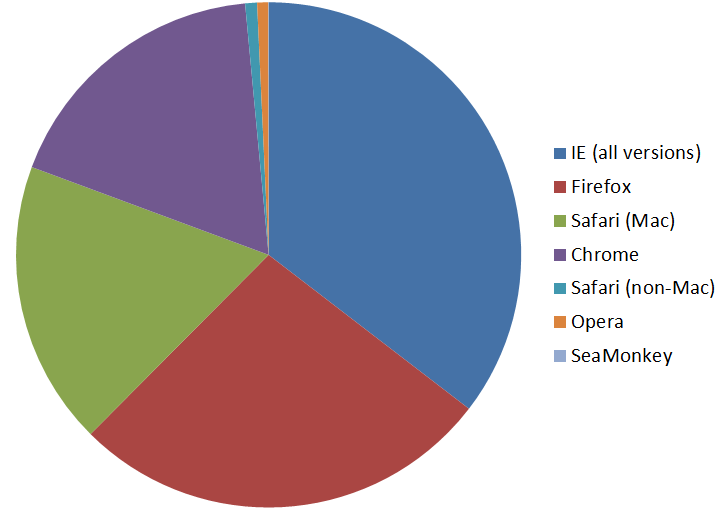
Internet Explorer (in all its versions) comprised over 35% of our users, Firefox had 27% and Safari (on a Mac) had an 18% share. If you feel that the ‘…on a Mac’ suffix is unnecessary, bear in mind that we apparently have several thousand people (0.7% of the total) using non-Mac versions of Safari…  My personal favourite browser – Opera – squeezes in with a similar percentage.

Client browsers by type

But the all-important question was what proportion of our users would actually benefit from this upgrade. So here’s that pie chart again, with the browsers that can display ‘full OWA’ grouped together:

The answer is, reassuringly, pretty much everyone. We should be able to tell our users that 99%  of them will get the full range of OWA features.

For the remainder our data suggests that they often have access to a second browser which offers the full experience.

One final note on the subject of browsers: Exchange 2010 Service Pack 2 is now released, heralding the return of a feature that’s been much missed. For basic devices or where speeds are low and data is expensive, the reintroduction of an ultra-basic version of OWA represents a welcome gain.

We’re still debating SP2’s merits (an early deployment represents added risk during an already busy migration) but we do intend to deploy it, adding ‘Outlook Mobile Access’ as another useful way to access email.

Posted in Uncategorized | Comments Off on Client Browsers

Fixing those post-migration nickname blues

We’ve done a fair few migrations now, with several colleges and units within the university deciding to retire their in-house email system and join Nexus. And as user accounts were migrated in from some of these other systems we had the occasional issue reported with Outlook’s ‘autocomplete’ function.

Outlook’s autocomplete data is stored in a ‘nickname file’ (with an NK2 file extension) but, for complicated reasons, it stores X400 addresses rather than the more obvious SMTP address. When we migrate an Oxford user their email address doesn’t change but – especially where the user has come from another implementation of Exchange – the X400 address will inevitably be different after they’ve moved.

Now for new messages this is fine – the email address still works after all – but anyone relying on Outlook to auto-populate the ‘send’ field from their nickname file will likely get non-delivery reports, all due to that pesky X400 data being used instead.

In the past the traditional fix for this has been to fix things at the user end – the fortunate ones might have used an NK2 editor to extract/edit the offending email addresses. Other users might have let Outlook (or OWA) suggest the name and then use the delete key to remove the one broken address. But in some cases users may have had their NK2 file removed entirely.

Is there a better fix?

The starting point is to get that user’s X400 data from the original system, prior to migration. It can be extracted afterwards from the NK2 file or via Powershell:

Get-Mailbox <username> | fl LegacyExchangeDN

This should show something like this:

LegacyExchangeDN : /o=nexus/ou=Exchange Administrative Group (FYDIBOHF23SPDLT)/
cn=Recipients/cn=<username>

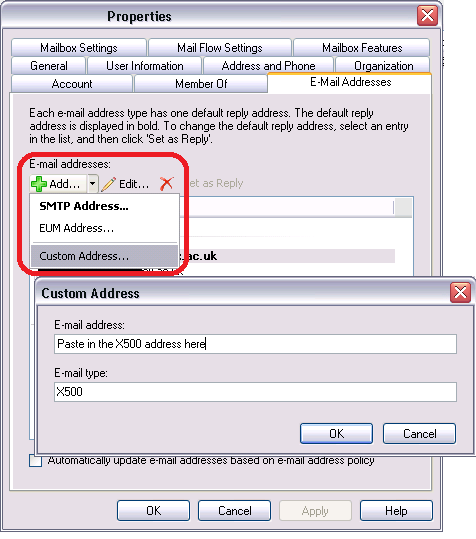
Post migration, it’s possible to add that old X400 data back to the account’s properties by adding a custom address onto the object. Alternatively, if you’re not keen on mixing up your X400 data, you can add the old X400 address to a brand new contact object. A moment tweaking that new contact to forward email to the current user account and you’ve achieved the same objective.

Posted in Uncategorized | 2 Comments

Customising Outlook Web App

One of our next jobs is to make OWA look a bit more Oxford-y.

To start off with, we need to tinker with the logon page. It’s actually made up of several components, carefully placed to work together and make what looks like one image, regardless of your monitor’s size. The obvious starting point is the GIF files make up that logon page.

At the top of the image are GIFs for the top-left, top-middle and top-right (lgntopl.gif, lgntopm.gif and lgntopr.gif respectively). The top-middle and bottom-middle GIFs are easily overlooked: they seemingly just represent a tiny sliver between the main two images. But they are important to ensure the page displays correctly on wider monitors.

A similar set of three images is used for the bottom (lgnbotl.gif, lgnbotm.gif and lgnbotr.gif). Then there’s also the self-explanatory lgnleft.gif and lgnright.gif for each side.

Changing the pictures is not something that’ll worry any support provider. But the text in the centre isn’t customisable. Well not unless you’re happy to edit DLLs and you don’t want official vendor support when something else breaks…

All of the supported edits are to the GIF, PNG, ICO and CSS files  found under the Exchange server installation folder:

\Exchange Server\V14\ClientAccess\Owa\<version>\themes\resources

The ‘version’ part will vary dependent on service pack revision. Exchange 2010 SP1, for example, is 14.1.218.13. Bear in mind that the same GIF files are also used at logout, so there is no need to do this work twice.
If you did want to hack the DLLs they’re three directories higher under \bin\<language>.

Having sorted out the logon page, the next thing is to create your standard theme (since the standard 27 ones clearly won’t be enough). The first step is to take a copy of one of the existing themes. I started with ‘base’ but if one of the others is closer to what you’re after you’ll save a lot of edits by using that as your template.
If you really want to go to town you can – if you really must – change the sound your users hear when the receive a new message, using either WAV or MP3 formats. To play with sounds, notify.wav is the sound which plays to indicate newly-arrived messages for example.

Starting with the pictures on the theme’s top, there’s a headerbgmain PNG file which comprises the left-hand part of the header background picture and headerbgright.png for the, er, right. If one of your users uses a right-to-left language there’s also headerbgmainrtl.png to display the header background correctly for them.  You may also want to have a play with csssprites.png as this file contains all of the little logos and icons used in OWA. In particular the first one – the ‘Microsoft Outlook Web App’ one – as the text is very likely to get in the way of your new header image. This whole file gets cached client-side for better performance (the server only has to make specific pixel requests) so changes here must be undertaken with great care.

Of more practical importance than icons and noises is probably themeinfo.xml. This file contains the theme’s display name and the sort order so a moment spent tinkering here should ensure that your users do actually know which is your theme, as well as making it easier to find. So this:

<theme displayname=”$$_BASE_$$” sortorder=”0” />

becomes this:

<theme displayname=”Oxford Nexus” sortorder=”0” />

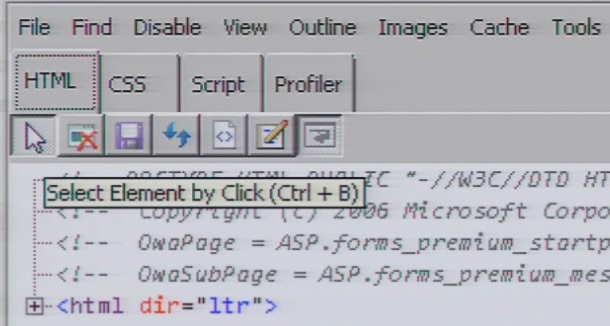
Now sooner or later we’ll need to move away from tinkering around the edges: there’s a hugely complex CSS file waiting to be edited. But rather than jump straight into it with notepad and scaring yourself silly, there’s an easier way.  Open a session to OWA in Internet Explorer and then select ‘Developer Tools’ from the ‘Tools’ menu. You’ll see the bottom part of the screen change to show the CSS data that’s been used to generate the page you’re viewing.

Click the arrow button (‘select element by click’) and you can then click onto an element on the page to have the relevant piece of code highlighted. When you find the right part, you’ll see the left-hand side shows the detail and the right-hand side showing you the file containing that value. Those notepad edits become more of a search-and-replace exercise via this route although some knowledge of what codes represent what colour will still be worth looking up. I found this as a useful starting point for that.

The final step is to edit themepreview.png. I’ve tried to squeeze the university’s logo into this 32×32 pixel square, along with the name ‘Nexus’, so that it’s not only the first one in the list but is also obviously ours.

Posted in Uncategorized | 8 Comments

Autodiscover oddities

Here’s what is supposed to happen when Outlook wants to connect, during coexistence of Exchange 2007 and 2010:

  1. On a domain-joined workstation Outlook (2007 or later) sends a query to Active Directory for the Autodiscover information. The directory returns a list of Service Connection Point (‘SCP’) objects. If you have lots of CASs then you’ll have lots of SCPs but Outlook will just select the first one in the list. The SCP should have all of the information needed to configure the Outlook client.
    Now we don’t have any domain-joined clients so an AD query can’t happen: our clients must get the information another way. Autodiscovery for these clients relies upon finding a fully qualified domain name based on the user-supplied SMTP address. In our case it’s therefore a variation on the theme of https://autodiscover.<unit>.ox.ac.uk.
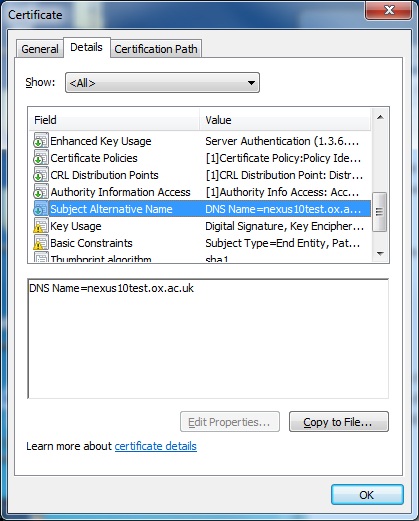
    Incidentally, the same internet-facing CAS must host the normal OWA URL as well as the Autodiscover one so a Unified Communications or Subject Alternate Name certificate is needed for a secure connection. Microsoft’s KB 929395 has a limited list of officially supported suppliers… 
    Behind the scenes autodiscover also takes care of Out-Of-Facility (‘OOF’) messages, availability, offline address book downloads and a few more besides.
    Where were we? Oh yes, how it’s supposed to work.
  2. We only have one site as far as AD is concerned (yes, in reality it’s not,  but our 10GB inter-site link means we don’t need to tell the servers)  but if we did SCP would also deliver appropriate site information back to the client. For ‘in site’ users there would be autodiscoversitescope data (an attribute set via the set-clientaccessserver cmdlet) which identifies the site for which it’s authoritative. For ‘out of site’ clients they’ll just get a list of the oldest SCP objects. That’s us, so our users ought to see the oldest Exchange 2007 CAS first.
  3. Outlook will use the first SCP in its list to contact Autodiscover. Even someone logging into their Exchange 2010 mailbox or a brand-new user will begin with the Exchange 2007 SCP as it is usually the first record in the list.
  4. At this stage all of our users are still on Exchange 2007 so it’ll be a 2007 CAS that receives the Autodiscover request. Later on, once we’re migrating users, there’ll be a time when the the user’s mailbox is on Exchange 2010. At that point the 2007 CAS must redirect the request to an Exchange 2010 CAS.
  5. The client will receive an HTTPS response from the autodiscover service containing an XML file. This file includes the connection settings but also the URLs for all of the configured Exchange services.
  6. Outlook can use this information to configure (new users) or connect (existing users) to our Exchange servers.

Now to get a better indication of what’s going on there are useful tools, such as TestExchangeConnectivity.com, and for test purposes only it’s very useful. But as it requires you to provide your password of course it should NEVER be used for production account testing. In our case, the multi-domain element of our service, with different email domains for different colleges and units, makes for an added challenge. Microsoft’s White Paper on this subject suggests options including allowing Outlook to give up on a secure session and drop back to HTTP or, as we’ve done, rely on redirection. With this method users do get prompted to ask if they’re happy for our server to configure their connection but that’s a small price to pay to ensure a secure session. To minimise certificate errors one option is to configure both the internalURL and externalURL to point to the CAS’ external name on its’ certificate (this will need split DNS to make it work).

So, that’s the theory.

In practice what we seemed to see today is clients apparently being directed to – and searching for – configuration data via our ‘legacy’ certificate freshly installed on our not-yet-in-production Exchange 2010 CASs. Of course the conventional approach is to use the ‘legacy’ certificate for the Exchange 2007 CASs during the coexistence phase, with the normal certificate on the Exchange 2010 CASs. Our approach at this stage differed from this because we had been hoping that, prior to transferring our clients to the Exchange 2010 CASs, we’d be able to use that certificate for client testing. This testing requirement was largely borne out of our experience that, for example, different implementations of Android behave in very different ways when CAS redirection takes place.

Now the behaviour that we actually saw was a few desktop Outlook clients picking up the legacy certificate data from the Exchange 2010 CASs, without being prompted to look there. This wouldn’t have been so much of an issue if we’d had external DNS entries, certificates also installed on the ISA servers and CAS/ISA rules in place. But we’d deliberately avoided that: only the clients we were specifically testing at that time were supposed to see that address, via manual configuration. So the address that Outlook was finding was an unresolvable one – in the short term this necessitated a quick bit of fixing work and in the longer term it’s prompted a re-think on our approach to testing.

Further diagnostics are under way.

Posted in Uncategorized | 2 Comments

Exchange 2010: it lives!

We now have all of our new servers running Exchange 2010. The number of CASs is now up to fourteen – to allay our fears about IMAP users with 100,000 items in their inboxes – and we’ve also now installed six hub transport servers and the ten mailbox servers.

The CAS installation gave us a minor headache but that’s largely because of the way that we operate. We are far more like an ISP’s email service than a conventional business implementation of Exchange. This means that our mobile users aren’t limited in the standard corporate way – in theory we can expect anything that offers email as a legitimate client device. Because we can’t be seen to restrict personal devices we don’t apply an Activesync policy. But Microsoft didn’t apparently envisage an organisation with no policy at all; the new CASs had the ‘helpful’ behaviour of creating a new (blank) policy on our behalf.

We were at least expecting this behaviour and were standing by to delete this new policy the second that it appeared. But alas with 50,000 users there’ll always be someone who has a device that connects during the  nanosecond that the new policy is out there. And so it came to pass: a handful of people were asked to agree to new security settings. It seems that to avoid this behaviour during future CAS work we may have to take the more drastic step of  briefly disabling all ActiveSync connections,  so that we can avoid policy messages confusing a subset of our users.

Next steps? All of the newly-deployed servers are currently running at the base of Service Pack 1. We’ll have to apply a current roll-up, we’ve got a huge number of databases to create and the backup client will need to be installed too. On the roll-up side of things we’ve concluded that roll-up 5 is the best bet – roll-up 6 has only been released for just under a fortnight and the full Service Pack 2 is still apparently on schedule for a release this year.

Posted in Uncategorized | Comments Off on Exchange 2010: it lives!